
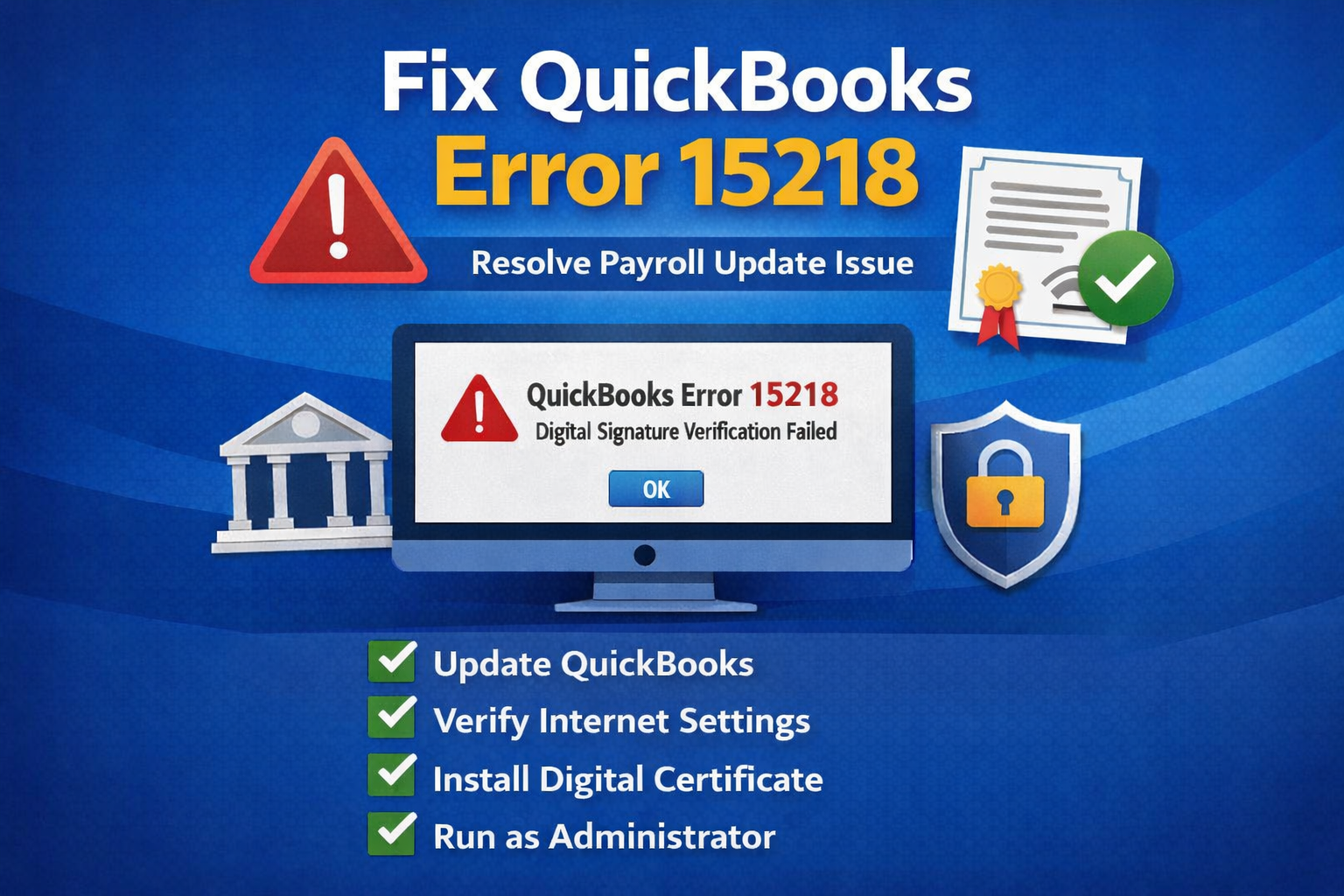
QuickBooks Error 15218 appears when QuickBooks Desktop fails to verify the digital signature file required for payroll or software updates. This error typically interrupts the update process and prevents users from downloading the latest payroll tax tables. If not resolved quickly, it can delay payroll processing and affect compliance.
What Causes QuickBooks Error 15218?
Several technical factors can trigger QuickBooks Error 15218:
- Damaged or missing digital signature certificate
- Incorrect Internet Explorer settings
- Disabled TLS 1.2 encryption
- Outdated QuickBooks Desktop version
- Windows permission restrictions
- Interference from firewall or antivirus software
QuickBooks relies on secure internet protocols to verify update files. If the system cannot authenticate the file publisher, Error 15218 appears during the update.
Signs and Symptoms
You may notice the following indicators:
- Payroll updates fail repeatedly
- Error message displays while downloading updates
- QuickBooks closes unexpectedly during update
- System performance slows down
Recognizing these signs early helps prevent payroll disruption.
How to Fix QuickBooks Error 15218?
Follow these structured troubleshooting steps:
Step 1: Update QuickBooks Desktop
Open QuickBooks.
Go to Help > Update QuickBooks Desktop.
Click Update Now and install the latest release.
Restart QuickBooks after installation.
Running the latest version ensures compatibility with secure update protocols.
Step 2: Verify Internet Settings
Open Control Panel > Internet Options.
Select the Advanced tab.
Scroll down and ensure TLS 1.2 is checked.
Click Apply and OK.
Restart your computer before trying the update again.
Step 3: Install the Digital Signature Certificate
Navigate to:
C:\Program Files (x86)\Intuit\QuickBooks
Locate the QBWin.exe file.
Right-click and choose Properties.
Open the Digital Signatures tab.
Select Intuit Inc. and click Details.
Choose View Certificate and then click Install Certificate.
Follow the wizard and select Place all certificates in the following store → Trusted Root Certification Authorities.
Restart your system after installation.
Step 4: Run QuickBooks as Administrator
Right-click the QuickBooks icon.
Select Run as Administrator.
Attempt the payroll update again.
This step ensures QuickBooks has proper system permissions.
Step 5: Check Firewall and Antivirus Settings
Temporarily disable security software to test if it’s blocking QuickBooks.
If the update works, add QuickBooks as an exception before re-enabling protection.
Preventing QuickBooks Error 15218
To avoid future update errors:
- Keep QuickBooks updated regularly
- Maintain updated Windows security certificates
- Use stable internet connectivity
- Review firewall settings periodically
- Install payroll updates promptly
Final Thoughts
QuickBooks Error 15218 is mainly linked to digital signature verification and internet security settings. By updating QuickBooks, enabling TLS 1.2, verifying certificates, and checking system permissions, most users can resolve the issue quickly. If the error continues after performing all steps, professional assistance may be required to repair installation files or system components.
Timely troubleshooting ensures uninterrupted payroll processing and keeps your accounting operations running smoothly.
